Quantcast
Channel: Developer Express Inc.
Viewing all 2431 articles
Browse latest View live

CloudProviders: Uploading files to Azure BlobStorage using the ASP.NET Upload Control (Now available in v14.2)

$
0
0

Besides the cloud support in the ASPxFileManager, we’ve also added support in the ASPxUploadControl to upload files directly to Azure BlobStorage.

Let me show you how easy it is to use this exiting new feature.

First we need to get the access details of the Blob Container were we would like to upload to. This can be done by creating a new container or using an existing one. For exact details on how to get ready, please read the blog post about CloudProviders: Connecting the ASP.NET File Manager to Azure BlobStorage (Now available in v14.2).

Screen5

Once you have prepared the Blob Container you can go to Visual Studio and drop an ASPxUploadControl on your page or UserControl:

UploadProperties

While you’re at it, also don’t forget to check the other new features of the ASPxUploadControl like Settings.EnableDragDrop:

UploadProps

Finally enable the ShowUploadButton, and hit Ctrl+F5 to start uploading to Azure straight away!

Make sure you register for the upcoming webinar at December 9th where I will tell and show you more about it.


DevExpress Universal v14.2 released

$
0
0

As I write this post, the teams are making the final v14.2 build ready to upload to our servers. In fact, by the time you read this, we will have flipped the (metaphorical) big red switch that makes it available to you, our active customers. Although our previous major releases have been bursting at the seams with new controls, new features and new enhancements, I’d have to say that, from my point of view, v14.2 caps them all. I wonder how we can do better for v15.1…

New features across the board

With this release, we continue to pull the platforms you know and use (and perhaps even love) into new areas of data visualization, attractive user interfaces, and usability. Just for some brief examples: a responsive UI for ASP.NET; a slick, fast full-featured export engine for Excel, which supports our new grouped/filtered data export from our grid and spreadsheet controls; an HTML5-based report designer/viewer; forms support in our PDF control; a preview richedit control for the Web; master-detail for the client-side datagrid; a new “Office for iOS” style for the WPF ribbon; umpteen updates for the Dashboard including element grouping and data filtering. And that’s what I can think of from the top of my head, before I even search the What’s New blog posts and remind myself of the new features for the map controls (mini-maps!), the report server, eXpressApp Framework, new chart types, and so on. There is a lot to read and digest.

If that small synopsis has whet your appetite, you can find out more on the What’s New in 14.2 page, or read about various new features in more detail here on the DevExpress community blogs. Some typical examples:

We have a couple more “New in v14.2” webinars to present this week – if you’ve missed any, please check our YouTube channel for the repeats – and, once the release is out, we have planned several webinar presentations in the coming weeks to explain some of the new features in more detail. We also have new tutorial videos that will be published throughout the remainder of 2014 and into 2015. If your preference is web programming, our online demos have all been updated to show off the new improvements and controls.

DevExpress Universal 14.2 is now ready for download if you have an active license. If you are new to DevExpress (or perhaps didn’t renew last time), please check out these new features in the evaluation version. I’m sure you’ll find something that will entice you to purchase. Have fun!

ASP.NET MVC: Spell Checker Extension (Now available in v14.2)

$
0
0

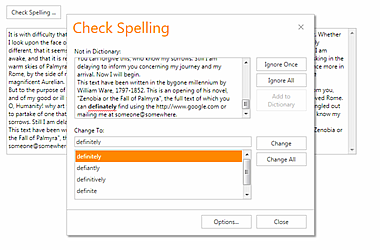
Good news, you now have the ability to spell check your ASP.NET MVC editors. We've added an excellent Spell Checker extension in the v14.2 release:

DevExpress MVC Spell Checker

We've had a great spell checker control in our WebForms platform for many years. And now that same codebase has been ported as a native ASP.NET MVC extension (yes, finally). This means that the MVC spell checker is based on a solid code base, is extensible, and ready-to use in your MVC web projects.

Benefits

The SpellChecker provides you a straightforward way in which to add Microsoft Office style spell checking capabilities into your next ASP.NET MVC application and offers you built in suggestion forms that replicate corresponding forms found in Microsoft Outlook. These forms will seamlessly integrate into any web application powered by DevExpress.

Features

And it comes with these great features built-in:

  1. Custom dictionaries - Built-in support for custom dictionaries in plain text or the following ready-to-use dictionary formats: Ispell, OpenOffice and Hunspell.
  2. Ready-to-use spelling dialogs - A Microsoft Office style error indication dialog. Pre-built Spelling Options editor. Dictionary dialogs allow end-users to add unrecognized words to a dictionary. As one would expect from this type of control, end-users can build a custom word list as their needs dictate.
  3. Spelling options - Spell checker options allow you to ignore emails, URLs, mixed case/upper-case words, repeated words and words with numbers within them.
  4. API - The SpellChecker's API includes methods to check an arbitrary string, a text editor's content or all text editor controls within a specified container. You can handle specially designed events to fully manage the spell checking process - including suppression of built-in forms, modification to suggestion lists, skipped words, manual error processing, etc.

How to use

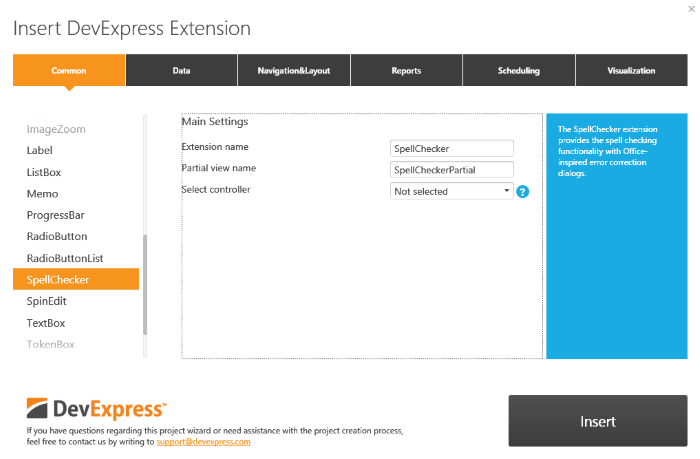
1. Use the DevExpress MVC Insert Extension dialog:

DevExpress MVC Insert Extension Dialog

Watch this short 3 minute video to learn how to use the dialog. Or if you prefer, there's a help topic too.

2. Or use the following code approach:

To add a spell checker to your project, declare the ASP.NET MVC Spell Checker extension in the Partial View and define how the callbacks will be routed back to your controller using the CallbackRouteValues property. Specify the default culture and the ID of the text control being cheсked. To add the ISpell dictionary, use the AddISpellDictionary method and specify the path to the dictionary file, the grammar file and the alphabet file. A dictionary should indicate its culture and character encoding. The CacheKey identifier enables you to access the dictionary using the Session[Dictionary.CacheKey] object.

You can subscribe to spellchecker events to perform certain actions before and after check:

Partial View code:

    @Html.DevExpress().SpellChecker(settings => {
        settings.Name = "spellChecker";
        settings.CallbackRouteValues = new { Action = "OverviewPartial", Controller = "Overview" };
        settings.CheckedElementID = "textBox";
        settings.Culture = new CultureInfo("en-US");
        settings.Dictionaries.AddISpellDictionary(d => {
            d.AlphabetPath = "~/Dictionaries/EnglishAlphabet.txt";
            d.GrammarPath = "~/Dictionaries/english.aff";
            d.DictionaryPath = "~/Dictionaries/american.xlg";
            d.CacheKey = "ispellDic";
            d.Culture = new CultureInfo("en-US");
            d.EncodingName = "Western European (Windows)";
        });
        settings.ClientSideEvents.BeforeCheck = "function(){
            $('#checkSpellingButton').attr('disabled','disabled');; }";
        settings.ClientSideEvents.AfterCheck = "function(){
            $('#checkSpellingButton').removeAttr('disabled'); }";
    }).GetHtml()

To start the check, use the SpellChecker.Check method:

View code:

Build Your Best - Without Limits or Compromise

Try the DevExpress ASP.NET MVC Extensions online now: http://mvc.devexpress.com

Read the latest news about DevExpress ASP.NET MVC Extensions: http://dxpr.es/ov1tQa

Download a free and fully-functional version now: http://www.devexpress.com/Downloads/NET/

Pressing F5 in Test Methods to Test

$
0
0

Last night, as I was about to stop work to spend some time with the family, I noticed this tweet:

F5Run

And I thought: You can do this in CodeRush. Easily. CodeRush has a remarkably flexible shortcut-binding system that can associate a sophisticated context (that must be satisfied) with any key binding. So it’s relatively simple to bind F5 to a command to run the test when the caret is inside a test method. You just need a context that tells the key-binding engine whether you’re in a test method or not.

CodeRush ships about 200 different contexts, that can do anything from tell you whether you are inside a property’s getter to whether the active project references a particular assembly. Contexts are used in shortcut bindings as well as other editor features.

After seeing the tweet, I checked to see if we already shipped a context that was satisfied when the caret was inside a test method. We did not.

This morning I noticed more discussion about this feature, including a suggestion to use another shortcut (which increases user burden and cognitive load – lots of good reasons NOT to do this), followed by this tweet from Caleb Jenkins:

AllCodeRushLike

Time to get to work.

Here’s how I built the feature, in about three minutes:

  1. CodeRush | New Plug-in.
  2. Dropped a ContextProvider control onto the design surface.
  3. Named it “Editor\Code\InTestMethod”.
  4. Double-clicked the ContextSatisfied event. Added this code:

    private void ctxInTestMethod_ContextSatisfied(ContextSatisfiedEventArgs ea)
    {   Method activeMethod = CodeRush.Source.ActiveMethod;   if (activeMethod != null&& activeMethod.Attributes != null)     foreach (DevExpress.CodeRush.StructuralParser.Attribute attribute in activeMethod.Attributes)       if (attribute.Name != null&& attribute.Name.StartsWith("Test"))       {         ea.Satisfied = true;         return;       }
    }
  5. Pressed F5 to run (to test my plug-in).
  6. In the new instance of VS, added the following CodeRush shortcut binding:

    ShortcutBinding

And that’s it.

Now I can press F5 inside a test method and only that method test is run. If I press F5 outside of a test method, the startup project runs.

F5ToRunTestCases


What’s New in CodeRush 14.2

$
0
0

IntelliRush

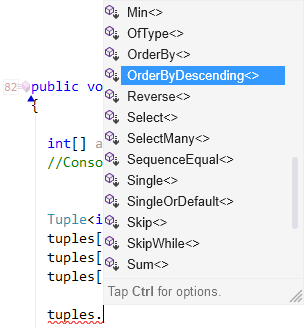
IntelliRush is the big feature in this release. IntelliRush enhances Visual Studio’s Intellisense, most importantly adding the ability to easily filter the list.

You can filter to see extension methods only:

FilteringByExtensionMethods

You can filter to see regular methods only:

MethodsOnly

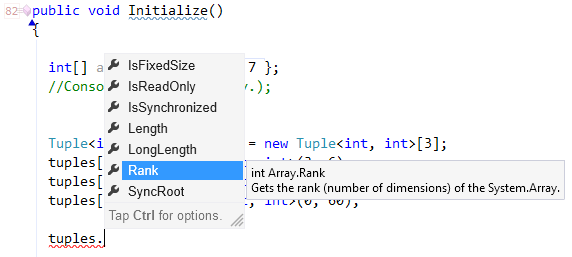
You can filter to see properties only:

FilterPropertiesOnly

You can filter to see only enums:

FilterOnlyEnums

You can filter to see only namespaces:

O'nlyNamespaces

You can filter to see only interfaces:

InterfacesOnly

To filter, just tap the Ctrl key. The filter hint will appear:

FilterHint

Then simply press the letter of the filter you want to apply. For more on IntelliRush, see this post.

Debug Visualizer

We continue to invest in and polish the Debug Visualizer. New in 14.2:

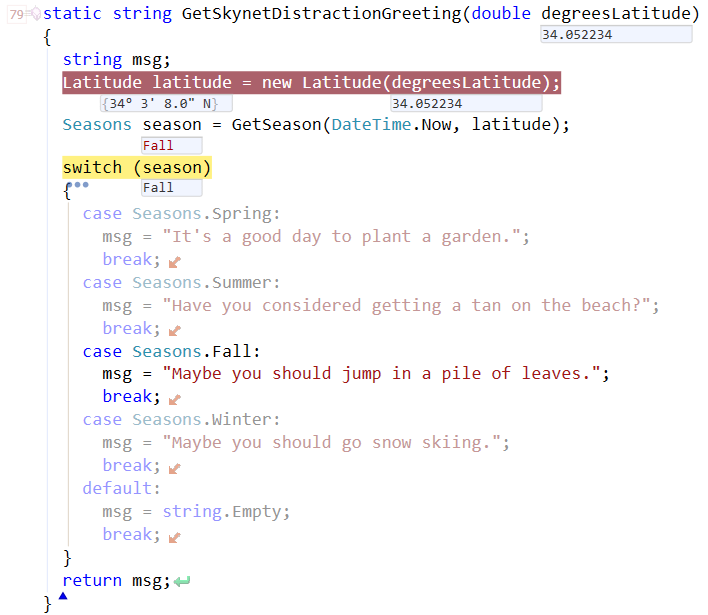
Dead Path De-emphasis has been moved out of beta and is now a first class feature. Code paths that will not be executed, determined as you step through the code, are rendered in a reduced contrast.

For example, in the code below, the instruction pointer is on the switch statement, but it has not been evaluated yet. However DV gives you a peek into the future and shows you exactly which case statement execution will flow to:

DeadPathDeemphasis2

Syntax highlighting is still visible in the dead code path. Dead code paths are now detected in more scenarios, including dead if or else branches, dead case statements and dead catch statements.

Exception Filters in Visual Basic are now supported, with the filter value and associated Boolean icon clearly visible.

Exception Variable Preview in all catch statements, even when the exception variable is not declared.

Smoother Animation, keeps important information right where you are already looking.

Behind the scenes, we updated the DV engine. It is more performant, and we improved JavaScript analysis.

Spell Checking Member Names

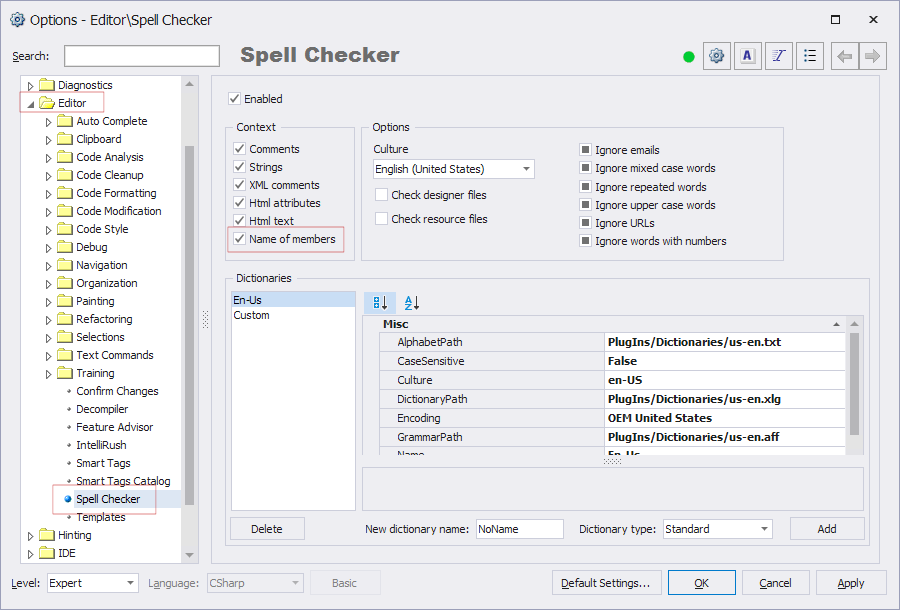
You can optionally check member names. To turn the option on, go into the Editor\Spell Checker options page, and check the “Name of members” checkbox:

SpellCheckerMemberNames

Once enabled, member names are all checked for correct spelling. Spelling issues are highlighted:

InsideTeztMethod

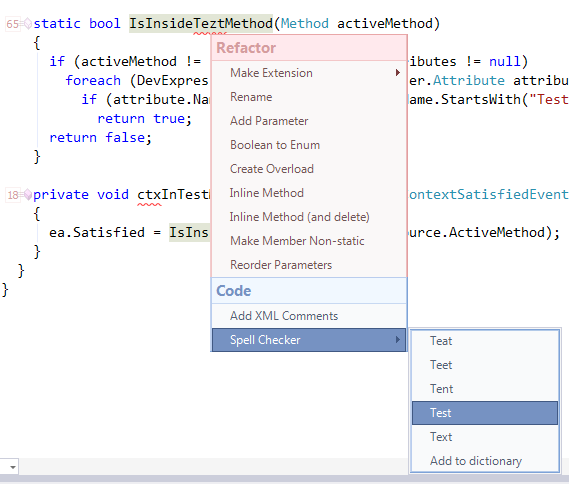
To correct or ignore the spelling anomaly, place the caret inside the misspelled portion, press the CodeRush key (e.g., Ctrl+`– Control plus the back tick key is the default.

SpellChecker

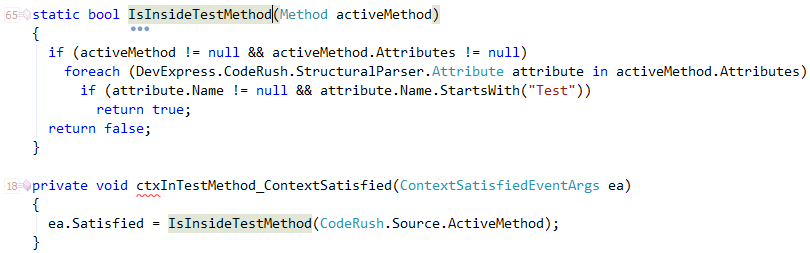
Correct the spelling mistake, and the member name is instantly updated everywhere.

InsideTestMethod

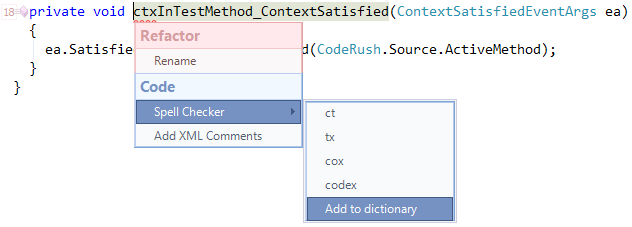
You can also add commonly used abbreviations to the dictionary. For example, in the code above, “ctx” is highlighted as not found. That’s an abbreviation I use for ContextProviders I drop on the design surface. So I can easily add that to the dictionary so I’ll never see that again.

AddToDictionary

Other Improvements

  • We’ve also improved the Decompiler, Jump to Declaration (with Partial Classes), and we’ve added automatic updates for CodeRush if you download and install from the Visual Studio Gallery. Here’s your complete list of What’s New in CodeRush 14.2.

If you’d like to see all this in action, watch my What’s New in CodeRush 14.2 webinar scheduled for 5 December 2014 at 10:00am.

ASP.NET Spreadsheet - Dynamic Chart Customization (v14.2 release)

$
0
0

Starting with the v14.2 release, your end-users can now easily customize charts in the DevExpress ASP.NET Spreadsheet control using a helpful context menu. The context menu is enabled when the end-user right clicks on a chart inside an open spreadsheet. And the menu allows them to customize a number of different options easily.

Select Data Source

This option let’s you specify the range of data that the chart will use to draw the values.


And the chart and axis titles are automatically added as well.
 

Change chart type and layout

You can also easily convert the chart type and it’s layout. For example, change a pie chart into a stacked bars with a single click.


Use a large variety of styles to add more flair to your chart.


Configure chart elements

Customize other chart elements like hiding an axis, add labels, show only major gridlines, and more. Change the appearance to focus on the most important details for your business.


Bring Forward / Send Backward functionality

This option allows you to overlay items easily and also let’s you decide which items have more foreground priority and which elements should be in the background.


The DevExpress ASP.NET Spreadsheet’s new chart customization context menu saves you and your end-users a lot of time and gives you the power to customize charts easily. Try it today by downloading v14.2 and let us know your thoughts about this new feature by leaving a comment below.


ASP.NET Scheduler Enhancements (Now available in v14.2)

$
0
0

The DevExpress ASP.NET Scheduler control for ASP.NET and MVC is getting the following enhancements for the v14.2 release.

Full Week View

The Full Week view displays appointments for all days within a specific week. It is designed to replace the current Week view and allows you to specify the first day of the week.

DevExpress ASP.NET Scheduler - Full Week View

The arrow buttons at the top left of the Scheduler allow your end-users to easily navigate between the weeks as well as go to a specific date.

And they can still easily create or edit appointments using the handy context menu built-into the DevExpress ASP.NET Scheduler.

Try it for yourself here: Online demo

Improved Time Zone Support

Scheduler Time Zones now rely on time zone information provided by the .NET Framework. Proprietary methods used to obtain time zone information have been deprecated.


Your Next Great .NET App Starts Here

Year after year, .NET developers such as yourself consistently vote DevExpress products #1.

Experience the DevExpress difference for yourself and download a free 30-day trial of all our products today: DevExpress.com/trial (free support is included during your evaluation).

DevExpress VCL: Gauge Control (coming soon in v14.2)

$
0
0

With every release of DevExpress VCL, we add more controls and features for data visualization. Many applications these days are growing into business analysis systems: data crunching and the presentation of results in the clearest way possible to allow for efficient understanding. Dashboards are a prime example of this scenario.

VCL Gauge Control: Full Circular Gauges v14-2

With v14.2 we’re adding a new control to DevExpress VCL to help you in conveying usable information at a glance in your dashboards, the Gauge Control.

VCL Gauge Control: Linear Gauges v14-2

Using the VCL Gauge Control you can communicate appropriate information with a variety of types: circular, linear, and digital.

VCL Gauge Control: Digital Gauges v14-2

We’re providing the following types of gauges with v14.2: Circular (full, half, and quarter); Linear (horizontal and vertical); Digital (using 7 or 14 segments). The gauges are available in both unbound or data-aware versions. Having chosen a gauge type, you can then select from a dozen built-in styles, or create your own.

Please be aware that the Gauge Control only supports RAD Studio 2010 or later (and in particular it supports the entire XE-series, for both 32-bit and 64-bit). We do not provide support for Delphi 7 or Delphi 2007 with this control.


ASP.NET MVC Data Editors - New Data Annotation Attributes (v14.2 release)

$
0
0

Starting with the v14.2 release, we have introduced two new validation attributes for the DevExpress ASP.NET MVC Editor extensions: Mask and DateRange attributes.

Benefits

Data Annotations are great because they help you to validate your Model:


Data Annotations allow us to describe the rules we want applied to our model properties, and ASP.NET MVC will take care of enforcing them and displaying appropriate messages to our users. – -Jon Galloway

Mask & DateRange

We’ve added these two new attributes:

  • MaskAttribute - specifies mask settings for a value of a data field and the editor's mask settings. Our ASP.NET MVC Data Editors allow you to use masks during editing. Masks are useful when a string entered by an end-user into an editor must match a specific format. For instance, a text editor that accepts date/time values in the 24-hour format only, or only numeric values, or a phone number that allows an end-user to enter digits into automatically constructed placeholders.

  • DateRangeAttribute - specifies the date range settings for a value of a data field and the editor's date range settings. With this attribute, you can implement a date range picker functionality. In this case, one editor is used to specify the start date, the other – to specify the end date. To link editors, decorate the end-date editor's model field with the DateRangeAttribute and set the StartDateEditFieldName property of the attribute to the field name of the start-date editor.

And these new attributes are fully compatible with Unobtrusive Client Validation feature.

You can still use the mask settings feature of our editors directly. However, Data Annotation feature makes it easier because you’re decorating/enhancing your Model and therefore it can be read by any view or controller that is going to use the Model.

How to

To implement this feature, do the following steps:


1. Create a model:

Start by creating a model in your MVC project and use the new attributes. For example, here I’m using the new Mask attribute on the Phone property and the DateRange attribute on the EndDate property of my Model:


public class MyModel {
    [Mask("+1 (999) 000-0000")]
    public string Phone { get; set; }

    public DateTime StartDate { get; set; }
    [DateRange(StartDateEditFieldName = "Start", MinDayCount = 3, MaxDayCount = 30)]
    public DateTime EndDate { get; set; }
}

2. Define a View with editors:

Now, in the view, I’ll use the excellent DevExpress FormLayout extension that helps you to create great looking forms easily:

@using (Html.BeginForm()) {
	@Html.DevExpress().FormLayout(
		settings => {
		settings.Name = "FormLayout";
        	settings.Items.Add(m => m.Phone);
        	settings.Items.Add(m => m.StartDate);
        	settings.Items.Add(m => m.EndDate);
        	settings.Items.Add(itemSettings => {
            	itemSettings.Caption = " ";
                itemSettings.NestedExtensionType = FormLayoutNestedExtensionItemType.Button;
            	ButtonSettings btnSettings = (ButtonSettings)itemSettings.NestedExtensionSettings;
            	btnSettings.Name = btnSettings.Text = "Apply";
            	btnSettings.UseSubmitBehavior = true;
        	});
    	}).GetHtml()
}

Note that the DevExpress MVC editor extensions support lambda-style data binding.

3. Create Controller Action to process data:

Finally, we simply display the view because we have a strongly-typed Model and the DevExpress Form Layout extension that will generate a beautiful form for us with validation built-in:


public ActionResult Index() { return View(new MyModel()); } [HttpPost] public ActionResult Index(MyModel model) { // Some Logic return View(model); }

Now you can see that attributes have been applied to the editors and validation errors are displayed as expected:

Download Sample & Online Demo

Download this sample MVC project that shows you how the new MVC DataAnnotation attributes help you to validate your Model data even further: DXAttributes14.2.zip


Check out an online demo of DevExpress MVC extensions and Model Validation.


If you’d like to learn more, I recommend reading Rachel Appel’s article: “How data annotations for ASP.NET MVC validation work”


Build Your Best - Without Limits or Compromise

Try the DevExpress ASP.NET MVC Extensions online now: http://mvc.devexpress.com

Read the latest news about DevExpress ASP.NET MVC Extensions: http://dxpr.es/ov1tQa

Download a free and fully-functional version now: http://www.devexpress.com/Downloads/NET/

DevExpress VCL: Camera control, Toggle switch editor (coming soon in v14.2)

$
0
0

Among all the major new features, we found the time to add a couple of new smaller controls to DevExpress VCL v14.2.

The first is a fun control, directly from customer feedback: the Camera Control. This control allows you to incorporate the camera on your device (say the camera on your Windows tablet, or the webcam on your laptop) into your application. For example, you have an app for insurance assessors and you want the app to be able to take photos of some property that’s being claimed on. Incorporate the new camera control, and your users are ready for action.

DevExpress VCL v14.2: Camera Demo App Screenshot

It even works with more than one camera – say you have a tablet with front and back-facing cameras – and as shown here I’ve tested it on my laptop that has both a built-in webcam and an external Logitech camera (held in my hand, as it happens).

The second smaller control is a modern tablet-style toggle switch editor.

DevExpress VCL v14.2: Toggle Switch Control

It’s a touch-friendly control designed to replace a traditional check box. We’re providing unbound, data-aware, standalone, and in-place versions of the editor.

(Note that new controls in DevExpress VCL are only available for RAD Studio 2010 or the XE series. Delphi 7 and 2007 are not supported with new controls.)

Modern UI with DevExpress WPF Controls

$
0
0

The aim of art is to represent not only the outward appearance of things, but also their inward significance”, said Aristotle. A beautiful sentiment that is very appropriate to the art of software design. As software developers, we build functionality into our apps and expose content to our users, and as designers we constantly try to arrange our UI in such a way that every UI element not only serves its functional purpose but also looks beautiful and is very pleasant to work with. When this balance of design and functionality is achieved, the end result is an amazing user experience. An example of this, is the EXPENSES app that our team has built.

DevExpress WPF Chart

A simple app, really, that is designed to track expenses and submit them to a manager for approval. Originally developed as a WPF sample by our friends at Microsoft, this app underwent a complete facelift and the entire UI was redone using the DevExpress WPF Controls.

At its core, is the NavigationFrame which serves as a container for all the Views and provides the out of the box facilities for navigating between them.

DevExpress WPF Data Grid

And not only navigation, the DevExpress WindowsUI framework is a complete system for building Modern Touch First applications with support for

Fly-out dialogs:

DevExpress WPF Flyout Dialog

Windows Tiles Containers,

DevExpress WPF Tile Control

Tiles Navigation and much more.

DevExpress WPF Tile Navigation Menu

Today, we are releasing this sample to you, our loyal customer. So make sure to grab the latest v14.2 build and this sample app, and let us know what you create.

--

Azret

DevExpress VCL: New Rich Edit Control CTP (coming soon in v14.2)

$
0
0

As I’ve said many times now, if you want to guess what will be coming in future versions of DevExpress VCL, all you have to do is look at what our .NET teams have been adding to their suites right now. And this next new control fits the pattern exactly: let the .NET teams work out all the issues, then port the control to Delphi.

I am delighted therefore to announce the new rich edit control for VCL. Think of all the features you take for granted in Microsoft Word, but wrapped in a new Delphi-coded rich edit control, designed to work seamlessly with the other UI controls that are part of DevExpress VCL, such as the ribbon.

DevExpress VCL v14.2: Rich Edit Control

The initial version in v14.2 of this important control is marked as a CTP (Community Technology Preview). It’s fairly complete, but with a few less-polished edges that we’re intending to address over the next few months. It ships in v14.2 with the following features:

  • Character and paragraph formatting
  • Image support
  • Styles
  • Lists (bulleted, numbered and multilevel)
  • Undo/Redo history
  • Clipboard operations (cut, copy, paste)
  • Overtype mode
  • Text highlight
  • Visual formatting marks, if needed

Not only that, but we’ve added a complete command API so that you can completely manage the operation of the control. This is done through the use of Action objects. By linking these Action objects to elements of your UI, such as ribbons, menus, and toolbars, you can easily create a powerful word processor in your application.

(Note that this control is marked as a CTP beta for v14.2. Although you can use the control as is, please be warned that it will change over the next few months as we polish it. Properties, methods and events may change for the final release. Also, currently the control is for 32-bit applications and only supports the RAD Studio XE series. Although a  64-bit version is in the works, we will not be back-porting it to RAD Studio 2010. It is only available in the full VCL Subscription.)

DevExpress VCL: Improvements to grid, maps, and spreadsheet (coming soon in v14.2)

$
0
0

A quick trio of improvements to the DevExpress VCL Subscription…

VCL Grid Control

As part of v14.2, we've added a Find Panel to our grid control, the ExpressQuantumGrid. This enhancement is dead simple for your users: to find some text in the dataset being shown in the grid, they simply enter the search text in the Find box and the grid will display those records that have matching values. What could be simpler?

DevExpress VCL v14.2: Find Panel in Grid

From your side, it's still pretty simple: there is a set of options available to control the display and behavior of the Find Panel. You can specify which columns are to be searched, choose between delayed automatic and manual search modes, allow search strings to be highlighted within located records, and so on. The Find Panel is available within all grid Views, except for Chart Views.

VCL Map Control

DevExpress VCL v14.2 adds support to the map control for:

  • Bing Maps services (Geocode and Routes)
  • Location-based queries to Bing Maps services
  • Shapefile format files

DevExpress VCL v14.2: Map Control Routes from Major Roads

This example shows route planning with Bing Maps as the provider using major roads.

DevExpress VCL v14.2: Map Control Shapefile Format

And this is an example of using the new shapefile support.

VCL Spreadsheet Control

In this release we’ve added the capability for the spreadsheet control to read and save print settings in spreadsheet files.

We’ve also added support for arrays in formulas, together with their visual representation:

DevExpress VCL 14.2: Spreadsheet Control Array Formulas

So have at it with sets of disjoint ranges in your formulas!

ASP.NET - Visual Studio Designer Improvements (Now available in v14.2)

$
0
0

Your Visual Studio design-time experience has now been improved with new time-saving designer dialogs for the DevExpress ASP.NET controls in the v14.2 release!

Designer Dialog?

A designer dialog is simply a dialog window that saves you time because it combines many sub-properties of controls into one area. For example, the DevExpress ASP.NET GridView control has separate dialogs that help you create and manage items like:

  • Columns
  • Summaries
  • Client-side Events

Now with the v14.2 release, you can access them all in one dialog:

DevExpress ASP.NET GridView Designer

This is a big time-saver because you have items in one location without the need to go looking through the Visual Studio properties dialog.

Client-Event Editor

The DevExpress ASP.NET Controls support a rich set of client-side API and the designer dialog window provides a nice editor for you to create or modify your JavaScript source:

DevExpress ASP.NET FileManager - ClientSide Events Editor

 And you'll notice that the editor also provides JavaScript syntax highlighting.

Smart Tag Link

To access the designer dialog window, click on the "Designer" link in the smart tag dialog which is available in the design view of Visual Studio:

DevExpress ASP.NET GridView - SmartTag Designer

WebForms Only

Because ASP.NET MVC does not have any design-time experience, the new designer dialogs are only available for ASP.NET WebForms platform.

WinForms Inspired

The designer dialogs feature was inspired by our WinForms controls that have had these dialogs for many years. We found them so useful that we 'borrowed' the idea for our ASP.NET controls.

So, if you're familiar with the DevExpress WinForms controls then you'll find these new dialogs helpful in ASP.NET too.

What do you think about the new DevExpress ASP.NET designer dialog windows? Drop me a line below. Thanks!


Your Next Great .NET App Starts Here

Year after year, .NET developers such as yourself consistently vote DevExpress products #1.

Experience the DevExpress difference for yourself and download a free 30-day trial of all our products today: DevExpress.com/trial (free support is included during your evaluation).

ASP.NET - Improved Demo Code Viewing Experience (v14.2)

$
0
0

Here's an improvement to the DevExpress ASP.NET demos that helps you to learn faster. It does not have a name so I'm calling it 'relevant code highlighting' or 'demo code - the good parts':

DevExpress ASP.NET Demo Code Highlight

Good parts - Highlighted

All the DevExpress ASP.NET demos now highlight the relevant code bits of the demo that you're viewing.

For example, in the image above, only the HTML markup and JavaScript code that is necessary for the multiple selection demo have been highlighted. But other code is still there to give us proper context

Take a look the demo online here: DevExpress ASP.NET File Manager Demo - Multiple File Selection

In a standard ASP.NET page we need various bits of code to display. But when you're looking at a demo, you don't want to hunt through the code to find which items are the ones needed for that particular feature.

So our new online demos for v14.2 release highlight the relevant bits of code and saving you time.

It's the little things

This may seem like small feature but any UI changes that improve our life by saving time and giving us better context are worth it.

Try the new v14.2 demos

Check out all the DevExpress demos:

Then let me know what you think about this new feature and how we can make our online demos even better. Thanks.


Save time and money...

Save time and money with high quality pre-built components for ASP.NET, Windows Forms, WPF, Silverlight and VCL as well as IDE Productivity Tools and Business Application Frameworks, all backed by world-class service and support. Our technologies help you build your best, see complex software with greater clarity, increase your productivity and create stunning applications for Windows and Web in the shortest possible time.

Download a free and fully-functional version now: http://www.devexpress.com/Downloads/NET/


CloudProviders: Connecting the ASP.NET File Manager and Upload Control to Amazon S3 Storage (Now available in v14.2)

$
0
0

What started as the preparations for a webinar ended as a really cool feature in v14.2!

You can now manage your files on Amazon S3 Storage with the ASPxFileManager because we’ve added brand new cloud providers, and you don’t need coding for it. Let’s see how you set it up:

Preparations on Amazon

After signing in or signing up at http://aws.amazon.com/, the Amazon Web Services overview is being displayed. You will first need to setup a user which is allowed to access the S3 Storage Buckets. This is done by clicking the Identity & Access Management link in the Administration & Security (IAM) Section:

In the dashboard which shows up, create a user by clicking the User menu item, and Create New Users:

AddUser

Enter the desired username (you are able to create several users in one go, but we will stick with one) and click Next:

AddUser2

Pay attention on the following screen which is only displayed once, click the hyperlink to get the users keys:

 AddUser3

AddUser4

Copy the indicated information to a save place because you will never see them again in Amazon!

After storing theses keys, you have to click on the orange box to go to the Services overview from where you can go back the AIM Dashboard. Now you can create a group with S3 Policies enabled:

AddGroup1

Give the group some logical name and click Next Step:

AddGroup2

In the Set Permissions screen, scroll down in the Select Policy Template section to select the Amazon S3 Full Policy:

AddGroup3

On the confirmation screen, click Next Step:

AddGroup4

In the Group Overview, click on the group name:

AddGroup5

And add the user to this group:

AddGroup6


AddGroup7

Now the security related things have been setup so you can create the S3 Bucket. Click the Orange Box in the Left Corner, and select S3:

S3Image1

On the Simple Storage welcome screen, click the Create Bucket button, enter the bucket name and select a region:

S3Image3

Connecting the ASPxFileManager to the bucket

In Visual Studio, drop an ASPxFileManager on a page or UserControl and specify the following properties:

Image 21

If you start your application, you’ll notice that you can start managing your bucket straight away!

Uploading directly with an ASPxUploadControl to the bucket

If you only want to upload files to Amazon S3 Storage, you can drop an ASPxUploadControl on your form and specify the following properties:

Image 22

You might want to specify some additional properties like ShowUploadButton = true, so you don’t need any additional coding at all.

If you prefer using Azure BlobStorage instead of Amazon S3, check here to find out how easy that is!

ASP.NET Upload Control Enhancements (Now available in v14.2)

$
0
0

Two great new features now make the DevExpress ASP.NET Upload control easier to use in the v14.2 release: Drag and Drop and File List.

Drag and Drop

The DevExpress ASP.NET Upload Control now provides your end-users the ability to drag a file and drop it on to the Upload Control. The Upload control support drag-and-drop by providing the new built-in drop-zone that is displayed when you drag a file over the control area:

 
This feature allows end-users to drag files from the Windows Explorer window and drop them directly onto a control or one of external drop-zones associated with it.
 
Enable the new Drag and Drop feature by setting the EnableDragAndDrop property to True:
 
 
You can associate a custom HTML element with the Upload Control as an external drop-zone by using the ExternalDropZoneID property:
 
 
This allows you to specify an area different that the upload control as the drop target. And when a file is dropped into an external drop-zone, it is added to the control's current file selection:
 
 
This functionality helps you to simplify file-selection for end-users from different folders.
 

File List

The new ‘File List’ feature allows you to show a list of all files selected by an end-user in Upload Control before uploading files to the server.

And notice that there is a "Remove" button provided next to each file. This helps your end-user to remove a file from the selection easily:
 
A helpful progress bar is displayed when the file uploading process starts:
 
Enable the File List feature by setting the EnableFileList property:
 
 
So, this feature reduces the time spent by a user on the file selection and enhances the quality of the user experience with the control.

ASP.NET & MVC

Both the new features of the DevExpress ASP.NET Upload Control are available for ASP.NET WebForms and MVC platforms.

Check out the online demos here:

Then leave us a comment with your thoughts on the new features.


Your Next Great .NET App Starts Here

Year after year, .NET developers such as yourself consistently vote DevExpress products #1.

Experience the DevExpress difference for yourself and download a free 30-day trial of all our products today: DevExpress.com/trial (free support is included during your evaluation).

WinForms Image Collection and Updated Image-Icon Gallery

$
0
0

As you probably know by now, v14.2 shipped last week and we've had some great feedback from many of you. Please keep them coming - we love to hear what you think and how you'd like us to move our WinForms product line forward in 2015. 

One of the features we did not discuss in-depth prior to our launch was the new Image Collection component and the updated Image Gallery. Let me take a minute to describe those now...

DevExpress Image Gallery Enhancements

Since the release of our Image Gallery in 2013, we've continued to add and refine our icon collection. Today, we ship over 1200 icons - both in color and grayscale forms. With this release we extended our icon collection with new Office 2013 inspired "flat" icons.

WinForms Office 2013 Flat Icons

Though these icons can be used across .NET platforms (WinForms, WPF, ASP.NET, MVC, etc), I want to focus on some of the usability changes we specifically made for WinForms developers...

We all know that one of the issues for large WinForms projects is effective icon management - avoiding icon duplication for solutions with multiple projects and forms. By default, Visual Studio does not offer a way to share icons between multiple WinForms projects and to use them without duplication. To state the obvious, icon duplication means that  you end up storing the same icons (such as Open.png, Save.png etc.) in dozens of places...inside form and project resources.

The problems associated with icon duplication includes the increase in assembly size, the impact in time whenever a change request is made and the errors that could arise as a result of a change. 

Sharing Icons between Projects - The Image Collection Component

Having stated the problem, let me describe the solution - our new Image Collection component. With it, you can now build a corporate-level icon assembly once and share it between all your projects and forms. The DevExpress Image Collection component allows you to use icons from this assembly without duplication - Your icon collection will always be in one storage. This resolves the problems I described above and perhaps most important, we've made creating the library extremely easy. Simply generate a class library project in Visual Studio and include your icons as Embedded Resources into it.

DevExpress Image Collection Step 1

To obtain access to your icon collection in other projects, reference the appropriate assembly.

DevExpress Image Collection Step 2

Drop the Image Collection component onto the design surface, and select ‘Load Images from Referenced Assemblies’ from the smart-tag menu.

DevExpress Image Collection Step 3

The following dialog allows you to select images from assemblies referenced by the project (except for system assemblies).

DevExpress Image Collection Step 4

The Image Collection will refer to images added by their identifiers which include the assembly name and image relative path. No binary data is copied to the form or project.

You can now bind the Image Collection to a DevExpress control and assign an image to the control element using image indexes in the same manner as the standard Microsoft Image List.

DevExpress Image Collection Step 5

So there it is - the Image Collection component. Now it's your turn, let me know what you think.


CloudProviders: Connecting the ASP.NET File Manager to Dropbox (Now available in v14.2)

$
0
0

What started as the preparations for a webinar ended as a really cool feature in v14.2!

You can now manage your files on Dropbox with the ASPxFileManager because we’ve added brand new cloud providers, and you don’t need coding for it. Let’s see how you set it up:

Preparations on Dropbox

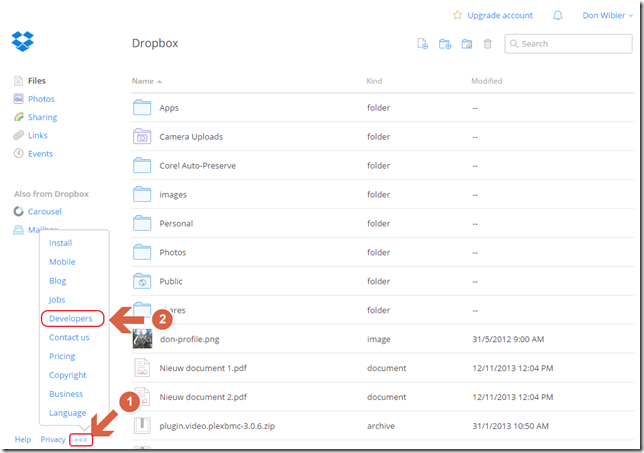
After signing in or signing up at http://www.dropbox.com, you’ll get an overview of the contents of your Dropbox folder. Click on the three dots at the left bottom of your browser to access the Dropbox menu and select the Developers item:

Screen1

You will enter the development section of the Dropbox site, where you can click on the App Console menu item:

Screen2

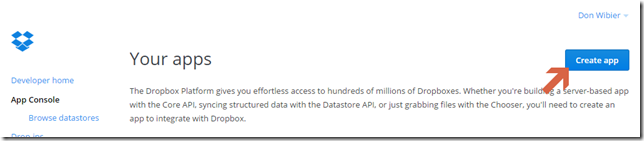
In the App Console screen, click Create app on the top right side:

Screen3

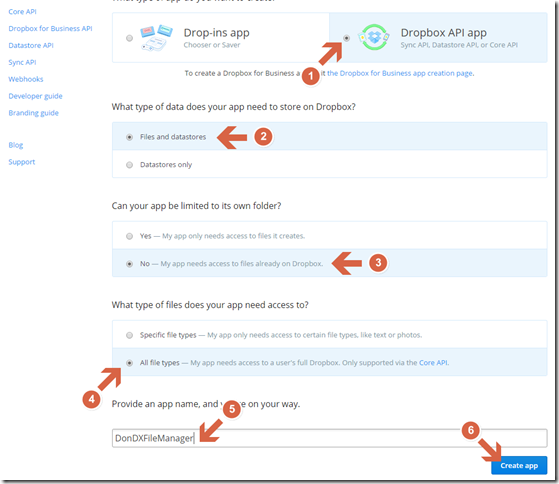
Next, you need to specify several options concerning your app. For the best experience, select the options as specified below:

Screen4

Please note that the App Name needs to be unique and it is possible that you will get warnings in case the name was already taken.

After the app has been successfully created, you need to generate an access token by clicking the button:

Screen5

Copy the token and stored it somewhere safe since you will only see it once:

Screen6

Connecting the ASPxFileManager to your Dropbox account

In Visual Studio, drop an ASPxFileManager on a page or UserControl and specify the following properties:

Screen7

If you start your application, you will notice that you can start managing your Dropbox store straight away!

You might wonder why you don’t need to do anything with the App Key and Secret, and why you don’t need to authorize the site to access your Dropbox account when running your application?

This is because of the static token we generated for the Dropbox account which means that you have access to this Dropbox account only.

If you would like to get access to your visitors Dropbox accounts, where a visitor will need to authorize your site to access his/her Dropbox storage, you can take a look at my initial demo provider which includes the OAuth authentication part. It is hosted on GitHub at https://github.com/donwibier/DXCloudProviders including a demo.

Click here if you want to use Microsoft Azure BlobStorage or here if you want to use Amazon S3 Storage.

If you have plans on creating your own FileSystemProvider, or if you want to connect to some other cloud service, let me know.

TestCafe v14.2 - Introducing Our New Web Test Recorder

$
0
0

As we get ready to release TestCafe v14.2, I wanted to briefly describe TestCafe's re-designed Visual Test Recorder. If you're not familiar with TestCafe or if you are ready to automate your QA processes and test your websites across browsers, operating systems and devices, take a moment to review the following web page...


The New Web Test Recorder


With TestCafe, recording test scripts couldn't be easier - once you click a fixture's Rec button, your browser will load the target page and activate the recorder to create your test. The recorder logs all actions...from key presses to drag-and-drop operations. When the web page is loaded during the recording process, TestCafe displays a toolbar and a list of recorded steps allowing you to perform the following:

  1. Add a user action
  2. Save and play a test
  3. Navigate through recorded steps
  4. Modify or delete a test


Each step in the list includes:


  • An ordinal number
  • A specific icon (corresponding to user action type)
  • An auto-generated step name


Web HTML Test Recorder


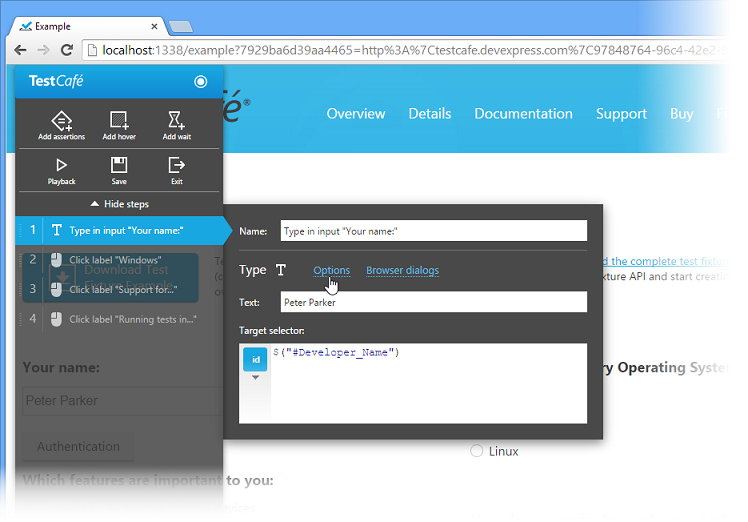
TestCafe allows you to review and modify each step when recording a test. Depending upon action type, you are allowed to modify the step name, element selector expression and other step parameters.


Web Test Recorder - Modify Tests


TestCafe's re-designed Recorder allows you to


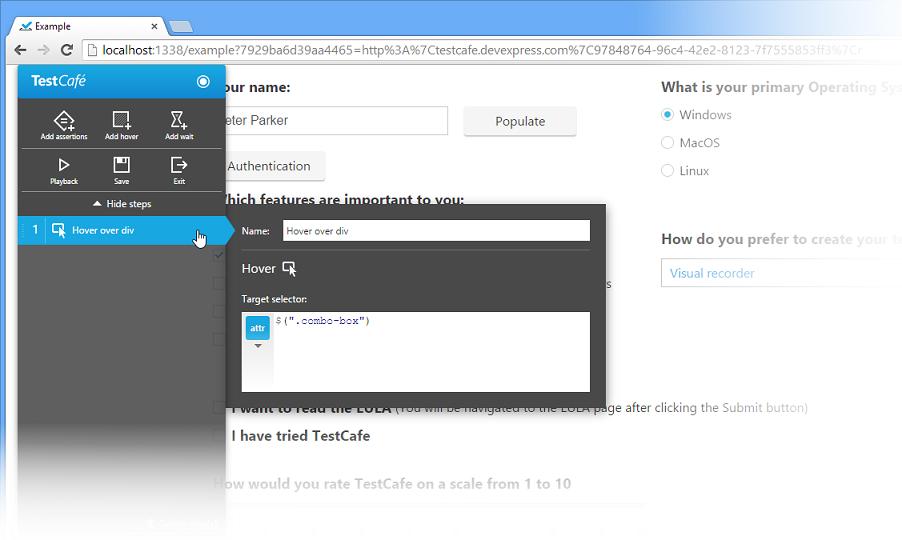
- Record a Hover action


Web Functional Testing - Test Recorder Hover Action


- Record a Wait action


Web Functional Testing - Record a Wait action


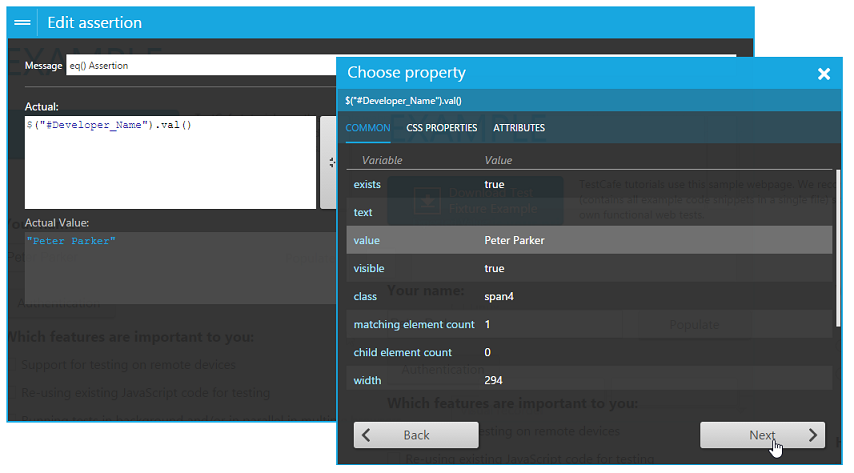
- Record Assertions


Web Functional Testing - Add Assertions


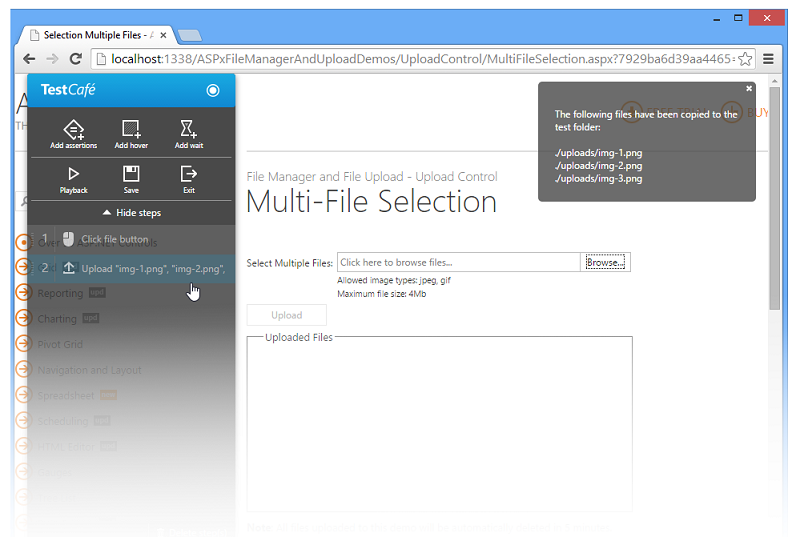
- Record file upload operations


Web Functional Testing - Record File Upload


Whenever you are recording a test, you can initiate playback by clicking the Playback the test button. Once clicked, TestCafe will play all recorded steps in the order they were recorded within the same browser window.


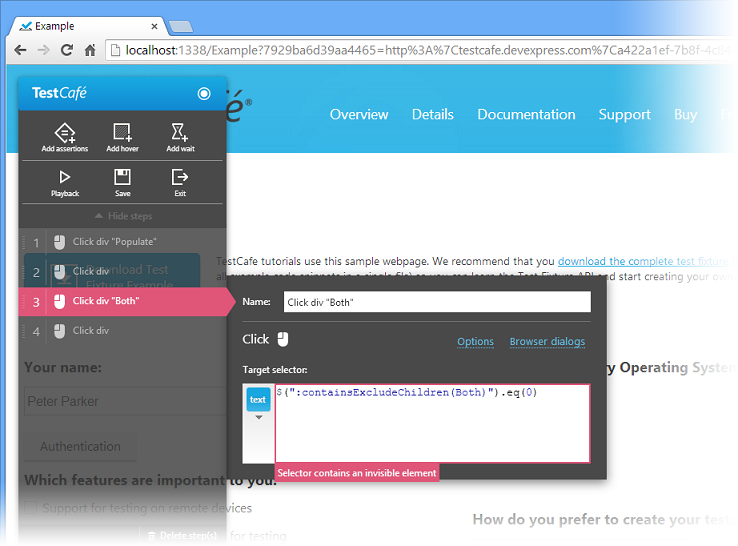
If a test step fails because of an error, TestCafe stops playback and opens a popup window and displays information related to the error. TestCafe will mark the failed step in red and open its options dialog where you can fix the error.


Web Functional Testing - Fix Test Script Errors


10 Reasons TestCafe's Test Recorder is in a League by Itself


So why should you and your team consider using TestCafe for all your web functional testing needs? Here are 10 reasons...


  1. Record, edit and playback test steps in the same window 
  2. Plug-in free design
  3. Clear and straightforward test API
  4. A large set of selectors
  5. Playback stops on a failed step (and activates the step's options dialog so you can fix the error)
  6. Record a hover action (no additional code required)
  7. Record a wait action (no additional code required)
  8. Record assertions (no additional code required)
  9. Multi-file upload support (no additional code required)
  10. Drag-and-drop support (no additional code required)


Tomorrow I'll give you step-by-step instructions on recording your first test script with v14.2 - until then, we'd love to hear your feedback. Let us know what you think of our new Test Recorder.


Viewing all 2431 articles
Browse latest View live


Latest Images